Free Trial
€0
24 hours
Test live TV, sports, movies, series, and setup before choosing a plan.
Choose Free TrialA simple IPTV setup guide for Smart TV, Firestick, Android TV, Android boxes, phones, tablets, and compatible IPTV players.
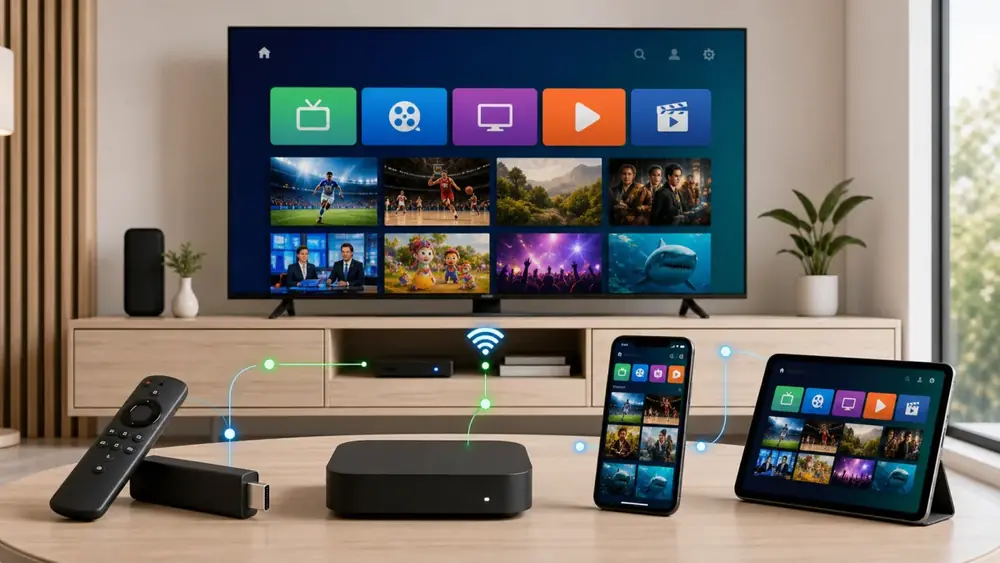
IPTV setup can feel confusing because different apps ask for different details. Some apps use a MAC address and Key. Others use M3U links, Xtream Codes, server URLs, usernames, and passwords.
IPTV Services Plan support helps customers understand what their device needs. This guide explains the common setup paths for Smart TV, Firestick, Android TV, Android boxes, mobile devices, and IPTV players.
Use this as a starting point, then contact support with your device name if you need exact activation help.
| Device | Common setup method | Helpful tip |
|---|---|---|
| Smart TV | IPTV player app with MAC and Key or login details | Send support the app name and screen details |
| Firestick | Install a compatible IPTV player | Use a stable internet connection during setup |
| Android TV | Install an IPTV app from the store or direct source | Ask which player is recommended |
| Phone or tablet | Use a mobile IPTV player | Test on Wi-Fi before mobile data |
| M3U player | Enter playlist or portal details | Copy details carefully to avoid login errors |
Check your internet connection and make sure your device has enough storage for the IPTV app. If your Wi-Fi is weak, move closer to the router or use a wired connection when possible.
Keep your IPTV Services Plan details ready. Depending on the app, you may receive a playlist link, login information, or instructions for a MAC and Key style app.
If you are not sure what your app requires, send support a photo or the app name. That makes troubleshooting much faster.
Smart TV users usually install an IPTV player app, then enter the details provided after activation. Some apps show a MAC address and Key that need to be shared with support.
After activation, restart the app and wait for the playlist or categories to load. This can take a little time on some TVs.
If categories do not appear, check that the app is supported and that the activation details were entered correctly.
Firestick and Android TV users often have more app choices. The best app depends on the device, remote control, and what type of IPTV details are provided.
Install the recommended player, enter the login or playlist details, then test live TV, movies, and series. If the app feels slow, ask support whether another player is better.
For best results, keep the device updated and close unused apps before streaming.
Once IPTV Services Plan is active, test the service like a real viewer. Open favorite channels, try sports categories, browse movies, and check series playback.
If something does not work, contact support with the device name, app name, and a short description of the issue.
Good setup is the foundation of a good IPTV experience, and IPTV Services Plan is built to help customers get there.
Before installing an IPTV player, restart your device and make sure your internet connection is stable. Small device issues can make setup feel harder than it really is.
If you use a Smart TV, check that the app store is working and that you have enough storage. If you use Firestick or Android TV, keep the device updated and close unused apps.
These simple steps help IPTV Services Plan support guide you faster because the device is ready before activation begins.
M3U is usually a playlist link. Xtream Codes usually include a server URL, username, and password. MAC and Key setups are used by some IPTV player apps that activate through the app details shown on screen.
Customers do not need to become technical experts, but knowing these words helps you explain what you see in your app. If your app shows a MAC address and Key, send that information to support.
IPTV Services Plan can then guide the correct activation path and help you avoid entering details in the wrong place.
If categories do not load, first check your internet and restart the app. Then confirm that the login details were entered exactly as provided.
If the issue continues, tell support your device, app name, and what appears on screen. Clear information helps support identify whether the issue is the app, activation, device, or network.
Most setup problems become easier when the customer and support team are looking at the same details.
After IPTV is working, keep the setup clean. Do not install too many unused apps on a small streaming device, and restart the device occasionally if it becomes slow.
If your Wi-Fi is weak near the TV, moving the router, using a stronger connection, or testing closer to the router can improve playback. IPTV quality depends on both the service and the home connection.
IPTV Services Plan support can help with activation and app guidance, but a stable device and internet connection will always make the experience better.
If the app asks for details you do not recognize, ask support before entering random information. Guessing can create errors that are harder to trace later.
The most useful message to support includes your device name, app name, and what the screen is asking for. A photo or exact wording can make the answer much faster.
This simple habit saves time and helps IPTV Services Plan guide you to the correct setup without confusion.
Before you choose IPTV Services Plan, make the decision practical. Confirm the device you will use most often, test your favorite live channels, open at least one movie or series, and check the service during the time of day you normally watch.
Also pay attention to support. If you ask a setup question, the answer should be clear enough that you know the next step. This is especially important for Smart TV, Firestick, Android TV, and IPTV player apps because each setup can look a little different.
Once those points are confirmed, choosing a plan becomes much easier. The free trial is the safest first step. The 1-month plan is good for flexibility. The 3-month and 6-month plans are useful for regular viewing. The 12-month plan is best when you already know IPTV Services Plan works well for your home.
Keep your decision based on real use, not only on the number of channels promised. A strong IPTV service should feel easy to start, comfortable to watch, and simple to renew. That is the standard IPTV Services Plan aims to meet for every customer who wants live TV, sports, movies, series, and setup help in one place.
Request your 24-hour trial, test the service on your own device, and choose a package only after you know it works for your home.
Start Free TrialStart with the trial, then choose the package that fits your home, budget, and viewing habits.
24 hours
Test live TV, sports, movies, series, and setup before choosing a plan.
Choose Free Trial1 month
A flexible first paid plan after your trial.
Choose 1 Month3 months
Good value for regular IPTV viewing.
Choose 3 Months6 months
A popular option for steady entertainment.
Choose 6 Months12 months
Best long-term value for daily streaming.
Choose 12 MonthsYes. Support can guide you based on your device and IPTV player.
Send the app details to support so they can guide the correct activation path.
Yes. Firestick is a common IPTV device when paired with a compatible app.
Different IPTV players use different login methods, so the required details can change.